Apps › Photo Widget: Crop & Position
How can I fit a whole portrait photo into a wide iPhone photo widget, and fill the empty sides with blur or a solid color?
With Photo Widget: Crop & Position, you can fit a whole portrait photo into a wide (Medium) widget without cutting anything off. There's no need to edit the photo or make a new image: just shrink it in the app, and it appears in the widget on your Home Screen as is.
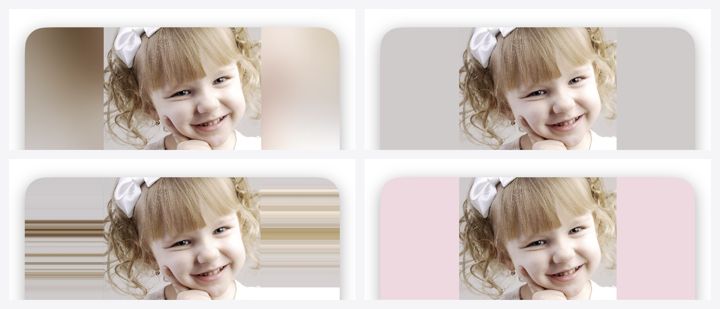
When you shrink a photo and the sides are left empty, choose how to fill them: Blur (a blurred copy of the same photo), Solid (Auto, a color that matches the photo), Stretch Edges, or Choose Color. You choose for each photo, and all four are free.
The built-in Photos widget on iPhone crops the center of each photo automatically, so a portrait photo in a wide widget loses its top and bottom.
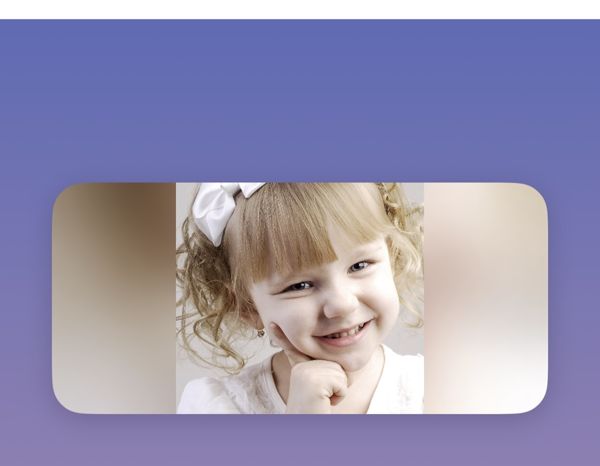
Photos are for illustration only.
How to do it
Tap + at the bottom right of the app and choose photos to create a photo set. Set the size to Medium (wide).
Tap a photo and pinch to shrink it until the whole photo fits in the frame.
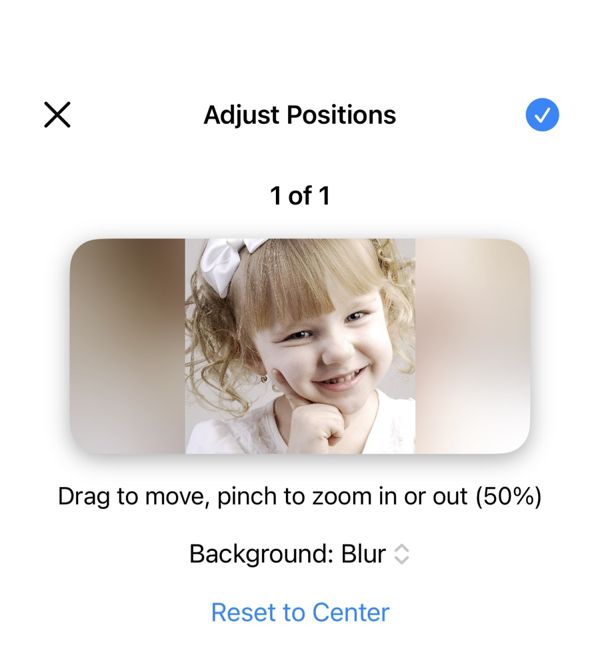
Under Background, choose how to fill the empty space: Blur, Solid (Auto), Stretch Edges, or Choose Color. If you don't choose, it uses Blur.
Touch and hold an empty area of your Home Screen, then tap “Edit” → “Add Widget”. Type “Photo Widget” in the search field and add the Medium size.
To show a different photo set, touch and hold the widget and choose one in “Edit Widget”.
What's free
- 4 ways to fill empty space, and framing for each photo
- Small, Medium, and Large widgets, In Order / Shuffle, and Show Date Taken
- Up to 3 photo sets, with up to 5 photos each
- Photos stay on your device and are never sent to the developer