Apps › Photo Widget: Crop & Position
How do I stop faces from getting cut off in iPhone photo widgets?
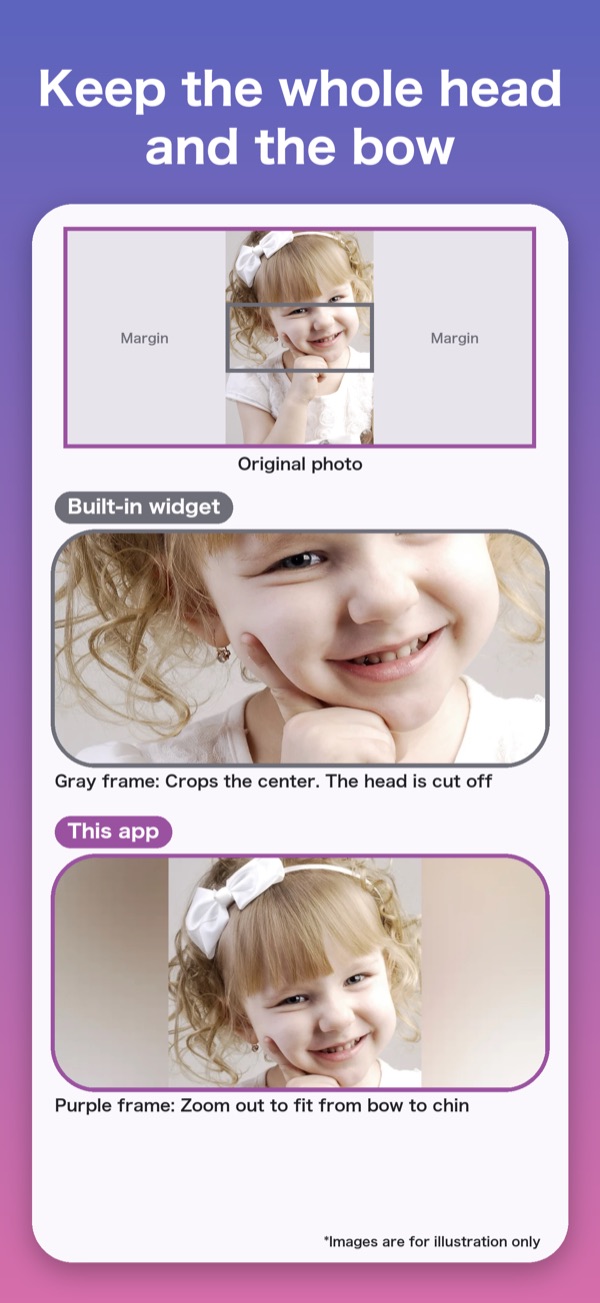
The built-in Photos widget on iPhone crops the center of each photo automatically, so faces and heads often get cut off.
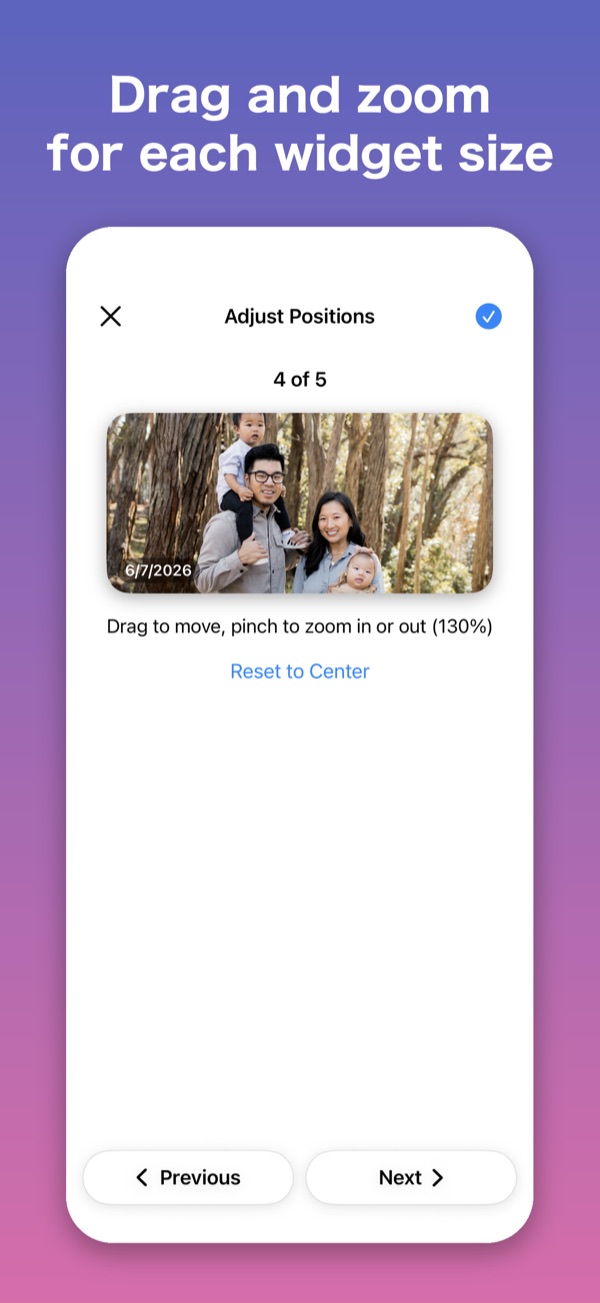
To choose what shows yourself, use the app Photo Widget: Crop & Position. You drag and pinch each photo inside the same frame as your widget, so you can keep faces in view.
You can also shrink a photo to fit it all in, and fill the space around it with blur or a solid color. The basics are free, with no ads and no subscription.
How to do it
Open the app, tap + at the bottom right, and choose photos to create a photo set. Pick the size (Small, Medium, or Large) of the widget you'll put on your Home Screen.
Tap a photo and frame the part you want the widget to show. Drag to move and pinch to zoom in or out.
Touch and hold an empty area of your Home Screen, then tap “Edit” → “Add Widget” at the top left.
Type “Photo Widget” in the search field at the top, then add the same size as your photo set.
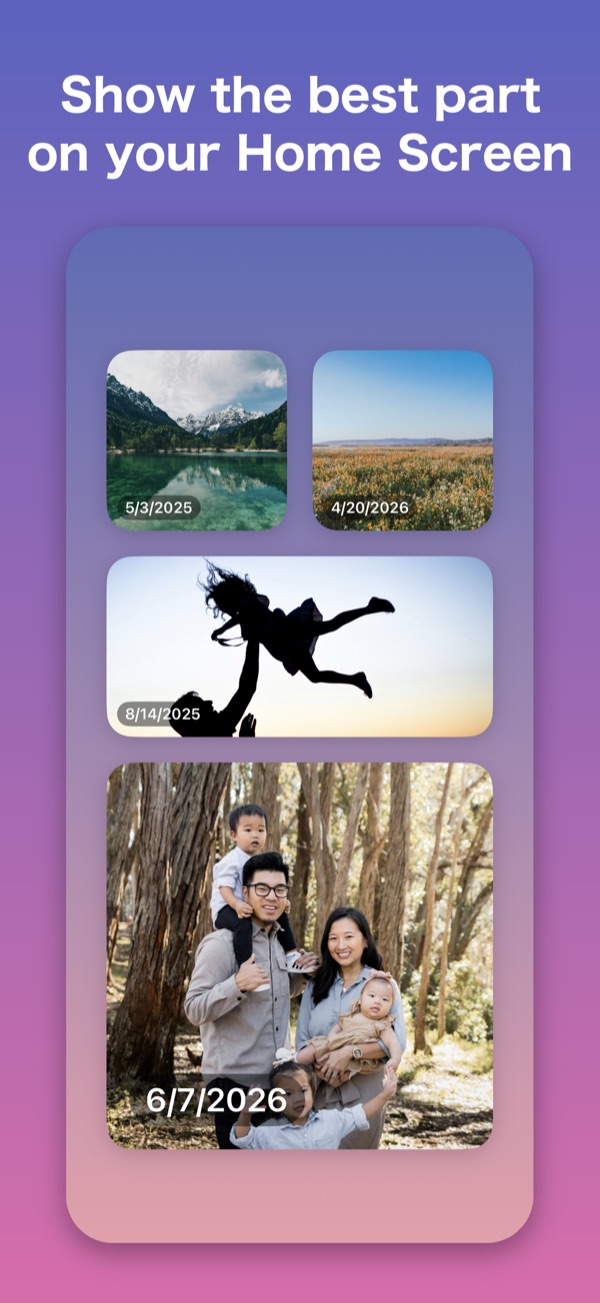
To show a different photo set, touch and hold the widget and choose one in “Edit Widget”.
What's free
- Up to 3 photo sets, with up to 5 photos each
- Framing, Small / Medium / Large, In Order / Shuffle, and Show Date Taken
- 4 background styles around the photo, and photo quality
- Photos stay on your device and are never sent to the developer