Apps › Photo Widget: Crop & Position
Is there a photo widget for the iPhone Home Screen that shows the date the photo was taken?
With Photo Widget: Crop & Position, your Home Screen photo widget can show the date each photo was taken, at the bottom left. Just turn on Show Date Taken in the photo set's settings. It's free.
The date comes from the date taken recorded in the photo, so there's nothing to type. Photos without a recorded date simply don't show one. You turn it on or off for each photo set.
The date follows the app's language (for example, 6/7/2026 in English). Since the photos in a set change in order or at random, you can always see when each one was taken.

How to do it
Tap + at the bottom right of the app and choose photos to create a photo set.
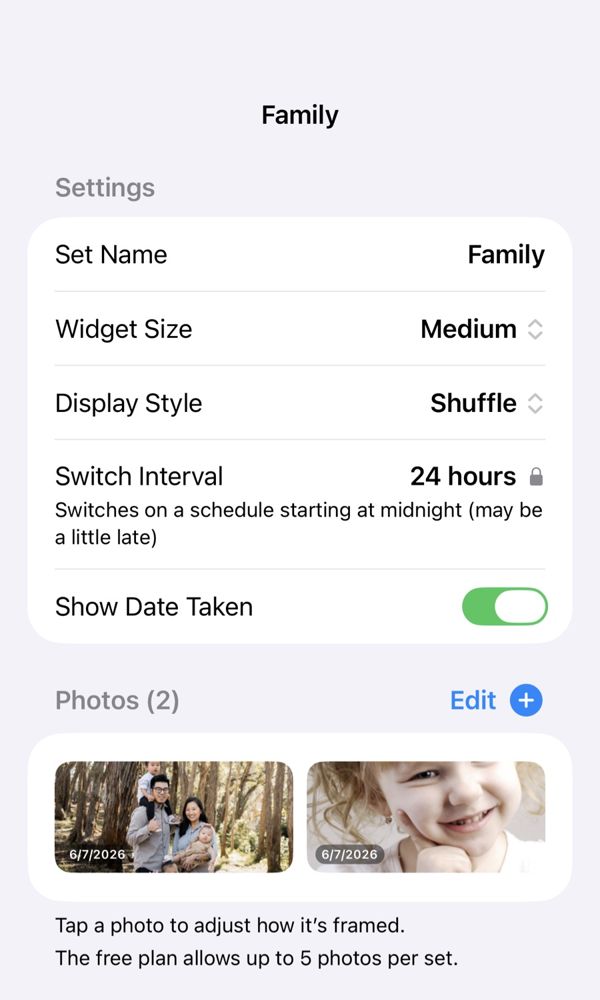
On the photo set's screen, turn on Show Date Taken. The dates also appear at the bottom left of the photos in the list.
Touch and hold an empty area of your Home Screen, then tap “Edit” → “Add Widget”. Type “Photo Widget” in the search field and add the same size as your photo set.
The date taken appears at the bottom left of the widget. For a photo set where you don't want dates, turn Show Date Taken off.
What's free
- Show Date Taken (on or off for each photo set)
- Framing for each photo, and 4 ways to fill empty space
- Small, Medium, and Large widgets, In Order / Shuffle
- Up to 3 photo sets, with up to 5 photos each
- Photos stay on your device and are never sent to the developer